Above your price grid is a fully customisable area which you can display market and/or selection information, Stored Values, TPD information, as well as add buttons to start Automation Servants or trigger Keyboard Shortcuts etc.
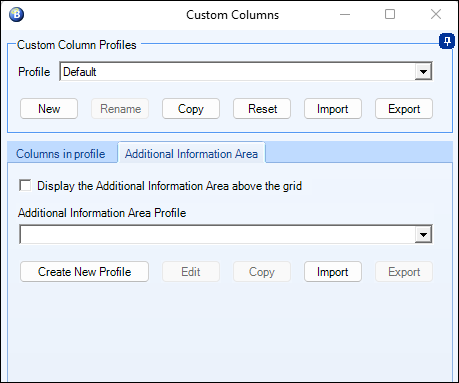
Display the Additional Information Area above the Grid
When using an Additional Information profile they are saved as part of a 'Custom Column' profile, ticking/unticking this box give you a quick and easy way to enable/disable the Additional Information area part of the profile above your one-click grid.
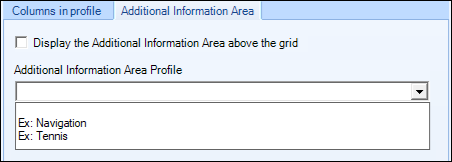
Selecting an Additional Information Area Profile
You will see there are already two example profiles included for you in the pick list of saved Additional Information Area profiles. These are named 'Ex: Navigation' and 'Ex: Tennis', you are free to use them as they are, edit and resave them by clicking the disc icon

, or build on them further by making changes then clicking the disc+ icon

at the top of the editor to save as a new profile. When you create a new profile after saving it will be able to select from this list.
You can also select a profile to 'Copy' which is handy if you want to make some changes to an existing profile then save as a new profile, or you can export/import a profile. Our forum contains many ready-made examples which you can download then import directly
here
Creating/Editing an Additional Information Profile
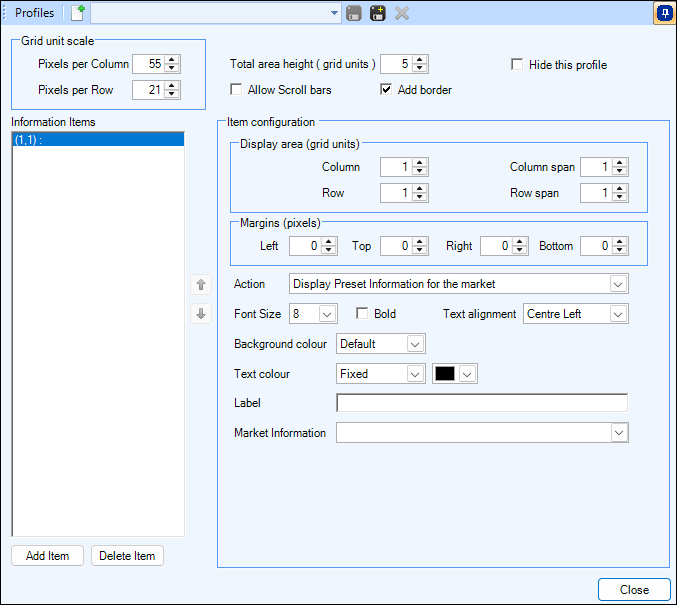
To begin creating a new profile click the 'Create New Profile' button (or to edit an existing profile select the profile you wish to edit from the pick list, followed by the 'Edit' button) and that will open the 'Additional Information' Editor window. (When creating a new profile, will initially be prompted for to give the profile a name.)
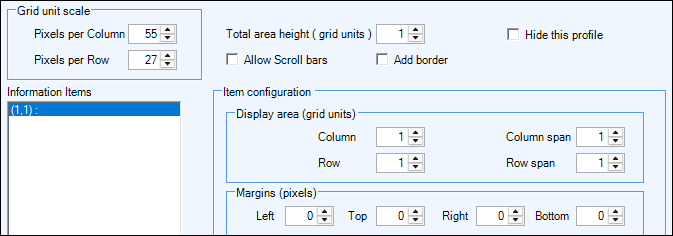
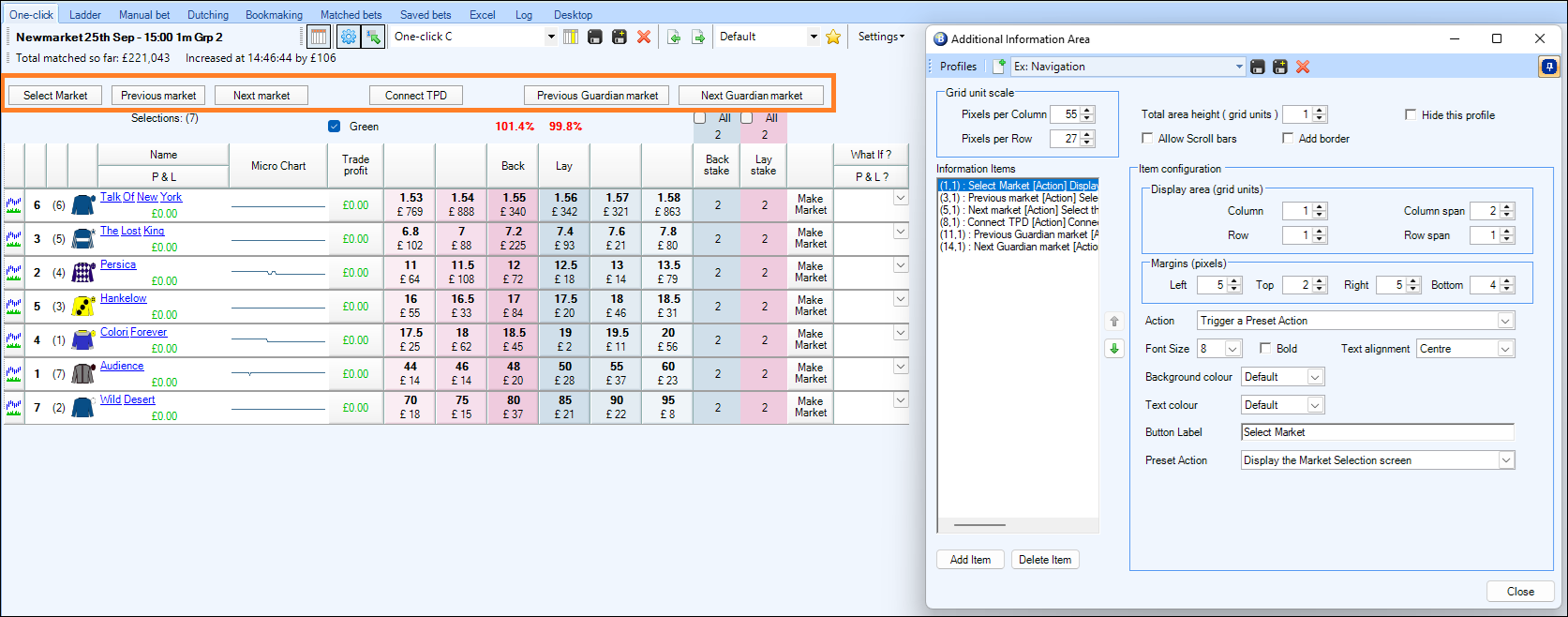
The first thing to do when creating a new profile is to click the 'Add Item' button located in the lower left corner. You will be able to configure the scale of the grid in pixels, define the overall height and decide if scroll bars should be shown. Information Items are placed into the grid at a chosen Column/Row location, but can span multiple columns/rows and add margins (in pixels) if required. Also configurable is the font size, text alignment and background/text colours.
-
You can use the 'Hide this Profile' box button to hide the profile in your pick list menu, this is handy if you have profiles which you only need during certain times of the year and wish to hide during the remaining time to help keep your list of profiles shorter and relevant.
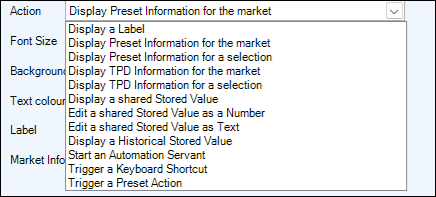
Below that is the list of Supported actions you can choose from
*Preset Information for a market/selection includes a choice of 40+ preset items, including number of matched/unmatched bets, in-play betting delay, race status, form, tennis scores etc
**TPD Information for a market/selection includes a further 15+ preset items, including the Leaders distance to finish, Time race has been running, selections position, selections stride frequency etc
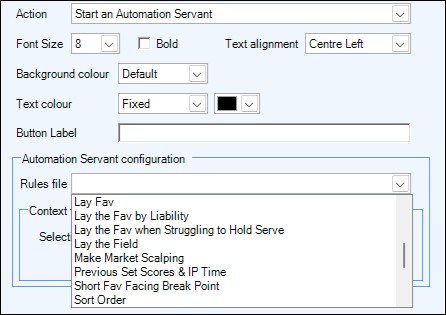
Depending on the Action you chose you will be shown relevant options for you to configure the the additional information area further. For example when selecting the action 'Start an Automation Servant' you will see a 'Automation Servant configuration' area appear where you can select the Servant to use from your list of rules files, then options for any 'context' relating to the rules file i.e, selection or price
The list of actions and subsequent options are the same as those available when creating a Custom Column and explained in further detail on the previous
page
TIP
When creating or editing an 'Additional Information' profile if you have both your one-click screen and the profile editor open and pinned on top at the same time you can see the impact of any changes you make to the additional information area highlighted in orange in the image below