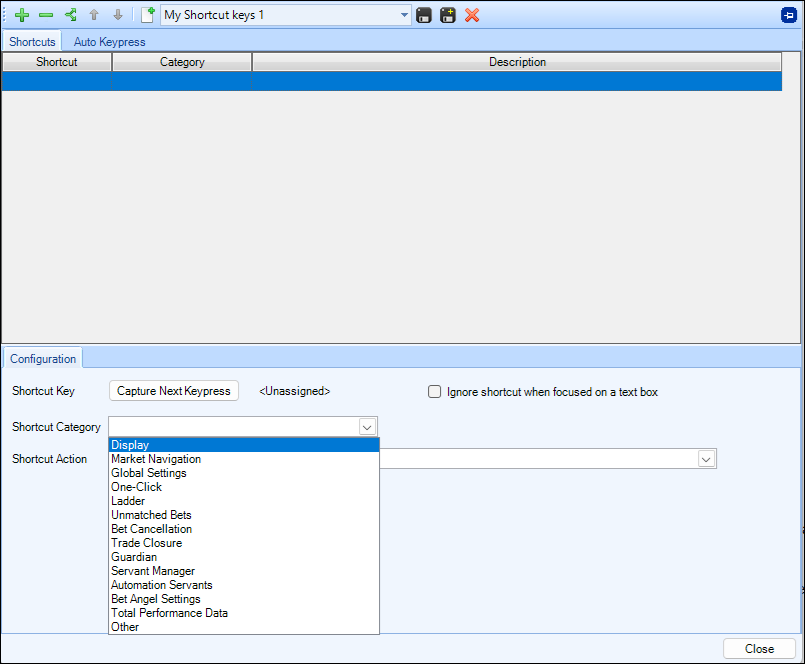
Let's now have a look at creating a shortcut key that will open the 'Ladder' trading screen.
Begin by clicking the  icon in the upper left corner of the editor window
Then select the category for the type of shortcut you are looking for, as we want to open the ladder trading screen this will be found in the 'Display' category
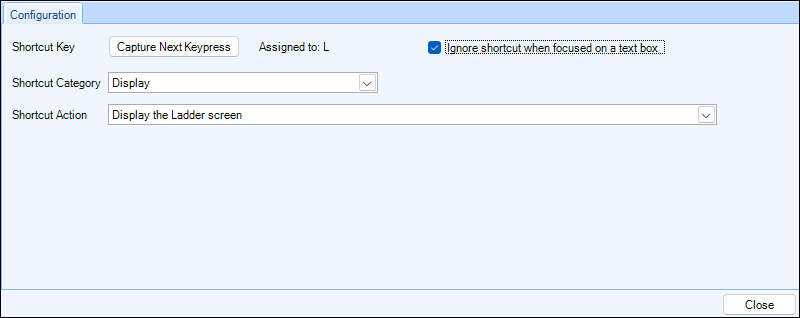
The shortcut action list you are given is related to the category you have selected, so after selecting a category you can then select the relevant shortcut action you want, in the image below you can see the 'Display the Ladder Screen' action has been selected
The the next step is to click the "Capture next keystroke box" and then press the key you would like to assign this action to. In the image above I've assigned this to the 'L' key
You'll also see the 'Ignore shortcut when focused on a text box' is enabled, this means if you have for example the market search window open and are typing in the search box when pressing the 'L' key it won't trigger the shortcut key and display the ladder screen
When capturing a keystroke combinations of Ctrl, Alt & Shift are supported in conjunction with the usual alphanumeric keys.
NB; Some actions are context sensitive and track your mouse movement,
Example: If you assign "close trade on selection" to keystroke X then pressing the X key will close the trade on which ever selection your mouse cursor is currently hovering over.
Adding/Managing additional Shortcut Keys
To create another shortcut key just repeat the process beginning by clicking on the green plus icon again. If you wish to remove a shortcut simply click on the one you want to delete so that it is highlighted in the main window then click the green 'Minus' sign.
To move shortcuts up or down the list, highlight the one you want to move and click either the green up/down arrow icons, not only does this allow you to keep your shortcuts organised it is also required to control the order of processing when multiple actions have been assigned to the same keystroke.
For example you could use this to apply different automation rules to different market types in Guardian. i.e., you could assign a shortcut key to 'Select all Match Odds Markets', then assign the same key the action of 'Apply (a specified rules file) to Selected Markets'.
So you have created a macro where the press of one key performs two separate tasks.
Remember shortcuts are always processed from the top of the list downwards its important that if assigning the same key to multiple actions you have those in the correct order, otherwise they will not work
i.e., using the example above if the shortcut action to apply a rules file to selected markets was above the shortcut action that selects those markets then its not going to work
Once you have finished, to save a new profile, click the disk+ icon and enter a name for the profile, or to save changes to an existing profile click the disk icon at the top of the editor window