
Connecting to Your VPS Using an iPhone
If you want to access Bet Angel on an iPhone, the process is simple and secure.
By using a Windows-based Virtual Private Server (VPS), you can run Bet Angel remotely and control it from your iPhone as if you were sitting in front of the machine. This guide walks you through the steps from start to finish.
What Is a VPS?
A Virtual Private Server (VPS) is essentially a remote Windows computer hosted in a data centre. It behaves just like a normal PC — you can install software, browse the web and run applications as if you were in front of it. Once connected from your iPhone, you’ll see the Windows desktop and control it in real time.
You can purchase a VPS from here – www.betangel.com/vps/
Why You Need Remote Desktop Software
To view and control your VPS from an iPhone, you need Remote Desktop client software. This software uses the Remote Desktop Protocol (RDP) — a technology that streams the desktop visuals from the server to your iPhone, and sends your taps and gestures back to the VPS.
The good news is that there are several free RDP clients available on the App Store, and Microsoft’s own app is easy to use and reliable.
1. Download an RDP App
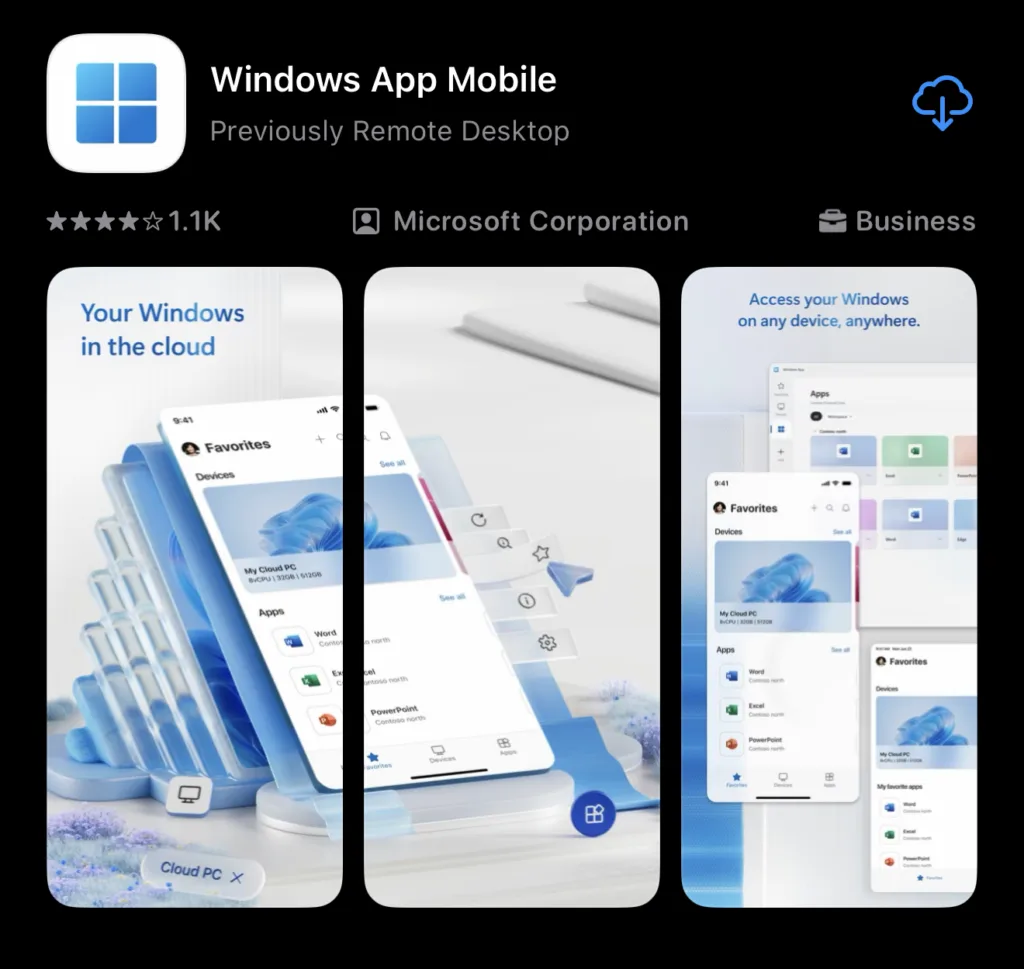
Go to the Apple App Store on your iPhone and install a remote desktop client.
We recommend Windows App Mobile (the successor to the old Microsoft Remote Desktop app). (App Store)
Alternative remote access apps like Jump Desktop & AnyDesk can also work if you prefer a different experience.
2. Prepare Your VPS Details
Before you connect, make sure you have:
- The IP address of your VPS
- The username
- The password provided by your VPS host
These details will usually be in the welcome email you received when your VPS was created.
3. Open the Remote Desktop App
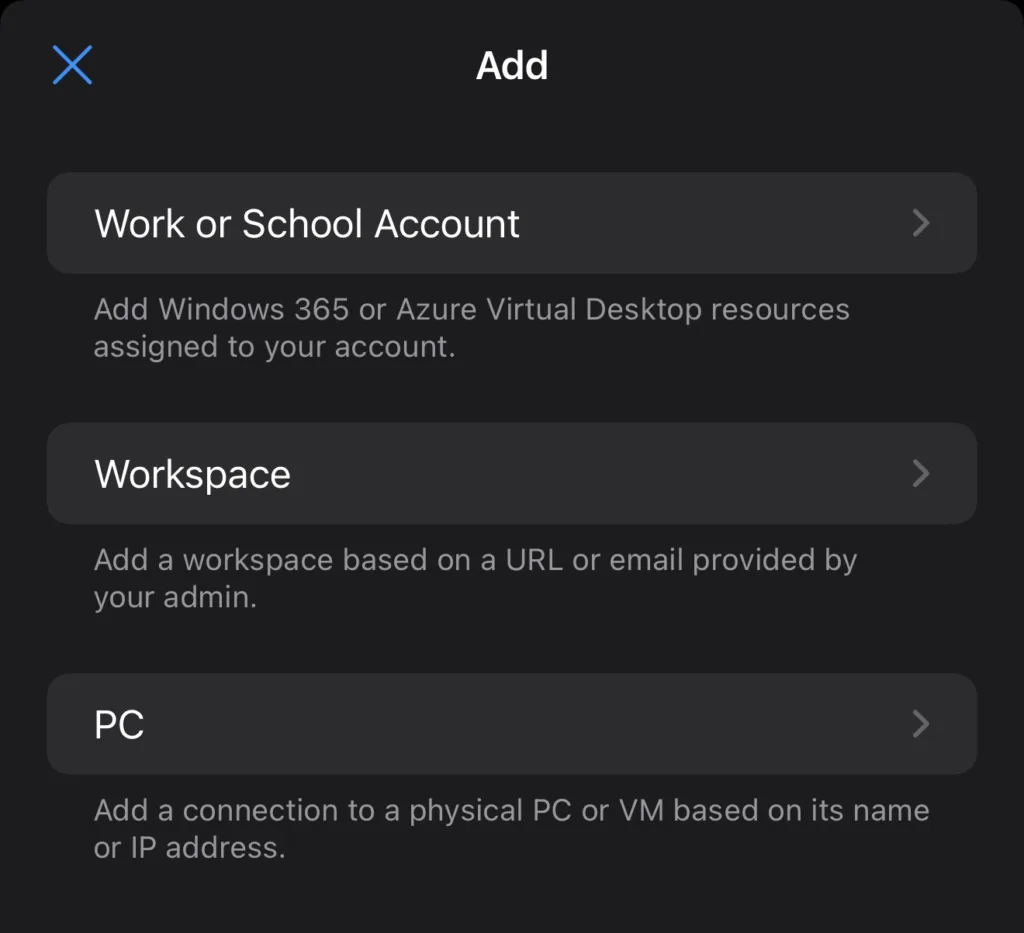
Launch the RDP app you installed on your iPhone. You’ll see the option to add a new connection — usually by tapping a “+” icon or an “Add PC” button.
When you have click to add a new connection, select the PC option.
4. Configure Your VPS Connection
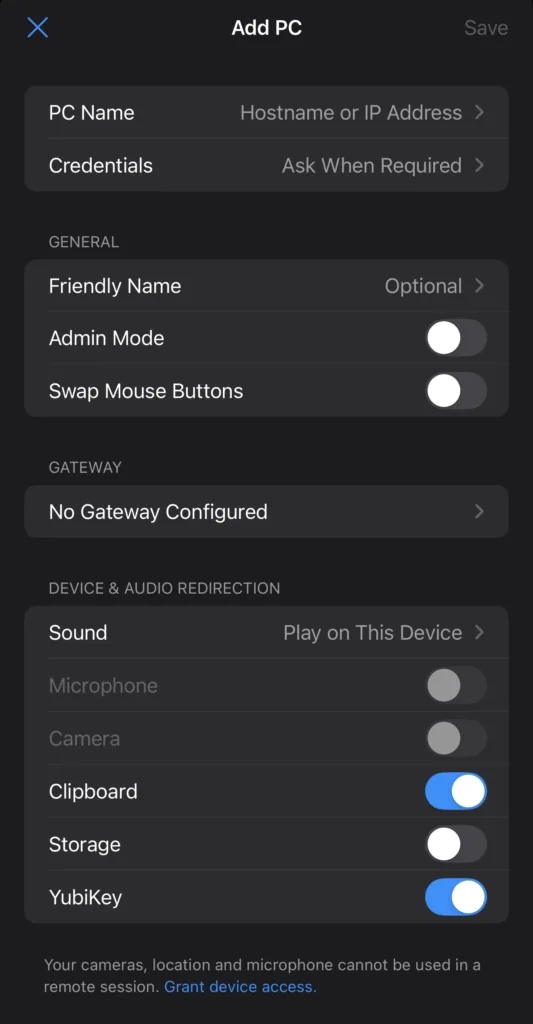
In the connection setup screen:
• PC Name
Enter your VPS’s IP address.
• Credentials
Here you should type your VPS username and password.
Saving these makes it quicker next time.
You can also give this connection a friendly name (for example “My Bet Angel VPS”) so you know what it is at a glance.
5. Connect to Your VPS
Once you’ve saved the connection:
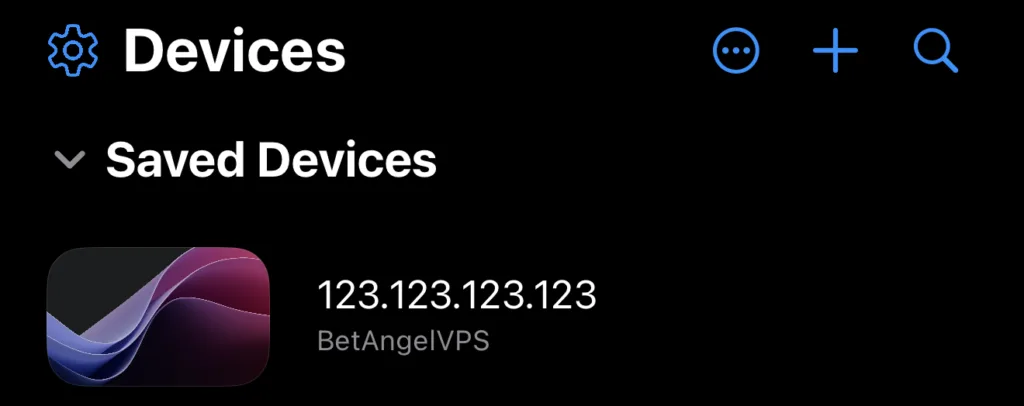
- Tap the new entry in the app.
- If it’s your first time, you may see a certificate warning — this is normal. Tap Continue to proceed.
You’ll now be connected to your Windows VPS. The remote desktop from the server will appear on your iPhone screen, and you can use it just like a regular PC.
Tips for a Better Experience
- Use landscape mode on your iPhone for a wider desktop view.
- If the RDP app feels small or awkward, you can pinch-to-zoom to adjust the screen.
- Keep your VPS login details secure and never share them publicly.
With this setup you can access Bet Angel, your spreadsheets and any other Windows tools from anywhere, straight from your iPhone — perfect for trading on the move or monitoring your systems remotely.